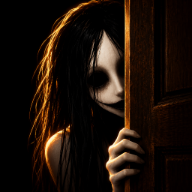
DONT LET HIM IN Graphics Settings: Best Setup for Roblox Horror Nights
How to tune DONT LET HIM IN graphics settings on Roblox, plus the in-game camera sensitivity and audio options players use for horror runs.
DONT LET HIM IN is a Roblox horror experience where the scares live in the dark: an entity prowls outside your house, cuts the power, and climbs onto the roof while you race to keep doors and windows shut until sunrise. That makes DONT LET HIM IN graphics settings more than a cosmetic preference — what you can see, and how smoothly your game runs, decides whether you catch movement at a window in time. This guide breaks down what the game's own options menu actually exposes, how to adjust DONT LET HIM IN graphics settings through the Roblox client, and which combinations players report using during real runs.
What the In-Game Options Menu Actually Shows
Community footage suggests DONT LET HIM IN keeps its own menu small rather than shipping a full graphics panel. In one recorded playthrough, the player opened settings before starting and found two options worth touching: Camera Sensitivity and Audio Level.
That split makes sense for a Roblox horror title. The experience controls input and sound, while the platform handles rendering. If you're hunting for a shadow toggle or a brightness slider inside the game itself, you probably won't find one — based on what players have shown, the in-game options are limited to how fast the camera turns and how loud the audio plays.
- Camera Sensitivity — how quickly your view pans when you move the mouse or stick. Higher values let you snap toward a door or window fast.
- Audio Level — the game's own sound output. Some players trim it slightly so voice chat and audio cues stay distinguishable.
Treat this as player experience rather than an official feature list. Menus can shift between updates, and different devices may present these options differently.
How to Change DONT LET HIM IN Graphics Settings Through Roblox
Because rendering happens at the platform level, most DONT LET HIM IN graphics settings are really Roblox client settings. Here's the practical route:
- Join the experience from the official DONT LET HIM IN page on Roblox so you're loading the correct game and not a namesake.
- Once you're in-game, press Esc on PC, or tap the Roblox menu button on mobile and console.
- Open Settings.
- Look for the Graphics Quality slider or a Quality Level option.
- Slide it up for sharper visuals or down for smoother frame rates, then close the menu and return to the game.
Exact labels vary by device, platform, and client version, so don't be surprised if your menu words things differently. On phones and tablets, Roblox often manages quality automatically and may show you a reduced set of controls. Console players typically get a leaner menu as well. If you see no graphics section at all, your device is likely locked to automatic quality.
Best DONT LET HIM IN Graphics Settings for a Horror Run
There's no single correct configuration, but the table below reflects a sensible starting point built around how this experience plays — dark interiors, limited light sources, and an entity that reacts to sound.
| Setting | Where to change it | What to try | Why it matters here |
|---|---|---|---|
| Graphics Quality | Roblox menu | Mid-to-high if your frame rate holds | Interior lighting and outdoor snow scenes are the heaviest visuals players report |
| Camera Sensitivity | In-game menu | Higher than your default | You check doors, windows, and the fuse box quickly |
| Audio Level | In-game menu | Moderate to high | Knocks, power cuts, and other cues carry information visuals can't |
| Voice chat | Roblox menu | Keep it controlled, use push-to-talk where available | Players report the entity can hear your voice |
| Device brightness | OS, monitor, or TV | Slightly above default | Flashlights and floodlights are limited resources |
The trade-off is simple. Pushing quality too high can cost you frame rate, and frame rate matters more than texture detail when something is climbing through a window. If your game stutters, drop quality first and raise brightness second.
Community footage also shows multiple difficulty tiers in the level select, including Medium and Insane, with Nightmare referenced by players. Difficulty changes the challenge, not the visuals — so don't expect a graphics tweak to soften a harder run.
Performance Tips If Your Frame Rate Drops
If DONT LET HIM IN graphics settings are already low and you're still stuttering, work through the usual suspects:
- Close background apps. Browsers and recording software compete for the same resources Roblox needs.
- Lower resolution on PC. Running the game at a lower display resolution is often more effective than shaving texture quality.
- Check your platform's performance display. Roblox offers an optional stats overlay in its settings menu on many platforms, which helps you confirm whether the dip is real or just a tense moment.
- Watch your flashlight use. Battery life is finite, and a dead flashlight in a dark hallway is a bigger problem than a slightly softer texture.
- Test before you commit. Load into the House map, walk the rooms, then try Snowbound Lodge — it's the larger, more demanding environment players consistently mention.
One more note on audio: several players describe the entity reacting to voice chat, with one group confirming it can hear them. If you're playing with friends, a quieter call can genuinely change the run — and that's an audio decision, not a graphics one.
FAQ
Are there separate DONT LET HIM IN graphics settings inside the game?
Based on player footage, the in-game menu covers camera sensitivity and audio level, while graphics quality is handled by the Roblox client. So most DONT LET HIM IN graphics settings you can actually change live in the Roblox menu, not in the experience itself.
Will lowering DONT LET HIM IN graphics settings make the game easier?
No. Quality settings don't touch the mechanics — doors, windows, lights, the fuse box, and the entity's behavior stay the same. Better visibility may help you spot movement at a window or on the roof, but there's no evidence that quality levels affect difficulty.
What camera sensitivity do players recommend?
Recorded playthroughs show players leaning toward high sensitivity, since you constantly whip the camera between doors, windows, and the breaker outside. Start a notch above your usual setting and adjust if aiming feels twitchy.
How do I stop DONT LET HIM IN from lagging?
Lower the Roblox Graphics Quality slider, close other applications, and consider reducing your display resolution. If your device manages quality automatically, you may need to free up memory instead of chasing a slider that isn't there.
Related Guides
DONT LET HIM IN All Devices: How to Play the Roblox Horror Game Anywhere
Wondering if DONT LET HIM IN all devices support exists? Here's how to check Roblox platform compatibility and play on PC, mobile, and console.
DONT LET HIM IN Console Guide: What the Official Listing Supports
Current device-support guidance for DONT LET HIM IN based on the canonical Roblox listing, without unsupported console-specific claims.
DONT LET HIM IN Headphones: Best Audio Setup for the Roblox Horror Game
DONT LET HIM IN headphones guide: Roblox audio settings, headphone types, and troubleshooting tips for a scarier, clearer horror session.
DONT LET HIM IN mobile: How to Play the Roblox Horror Game on Your Phone
DONT LET HIM IN advertises support for all devices in its official Roblox description. Learn how to find the experience on your phone and check specific-device compatibility.